Adobe Illustrator is one of the most widely used applications for creating vector-based graphics, logos, illustrations, icons, typography-based artwork, packaging designs, marketing creatives, and brand identity materials. Unlike raster-based image editing, vector design allows artwork to be scaled to different sizes while maintaining its fundamental sharpness and quality.
For students and aspiring designers looking for an Illustrator course in Hyderabad, learning Adobe Illustrator can provide an important foundation for building professional graphic-design skills. Illustrator is particularly useful for people interested in logo design, branding, illustration, advertising, print design, packaging, social media graphics, and digital artwork.
A professional designer needs more than software knowledge. Understanding typography, colour, composition, spacing, visual hierarchy, shapes, grids, and brand communication is equally important. Illustrator provides the tools, while design principles help the designer decide how those tools should be used.
A structured Illustrator learning program can take students from the basics of vector graphics to more advanced design workflows. Students can learn how to create logos, icons, illustrations, patterns, posters, packaging concepts, advertisements, and complete brand identity systems.
This guide explains what Adobe Illustrator is, why it is important for graphic designers, what students can learn through an Illustrator course in Hyderabad, how Illustrator is used for logo and brand design, important tools and techniques, portfolio ideas, career opportunities, and how beginners can build a practical learning roadmap.
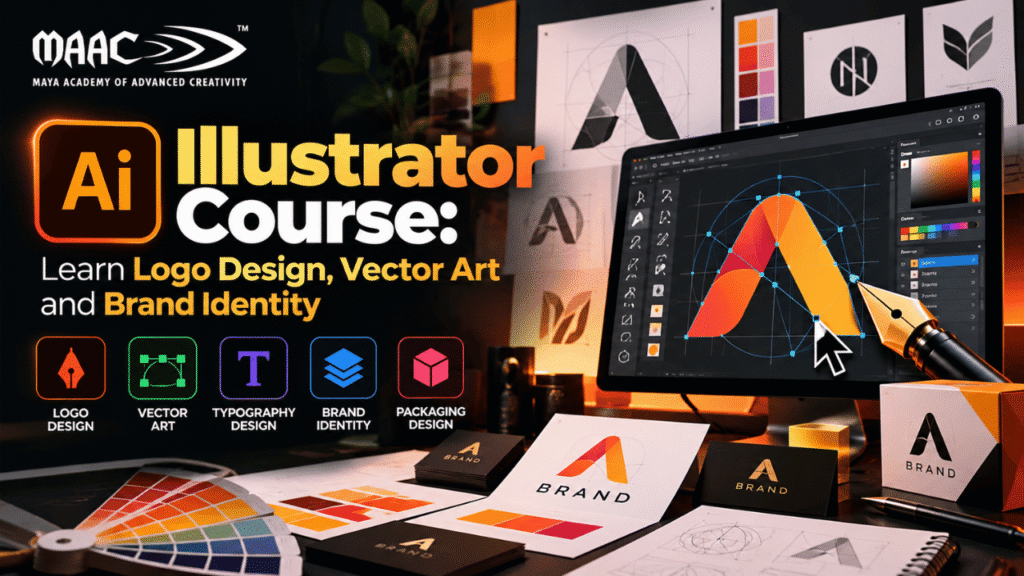
Adobe Illustrator is a vector graphics application used to create scalable artwork.
Unlike raster images, which are built using pixels, vector graphics are constructed using mathematical paths, points, curves, shapes, and fills.
This makes Illustrator particularly useful for artwork that needs to be used at different sizes.
For example, a logo may appear on:
A business card
A website
A social media profile
A billboard
Product packaging
Signage
Merchandise
A vector-based logo can be adapted to these different applications without fundamentally changing the artwork.
Illustrator can also be used for:
Logo design
Icons
Illustrations
Typography
Infographics
Posters
Packaging
Patterns
Brand assets
Advertising graphics
Modern businesses require visual communication across multiple platforms.
A single brand may need graphics for:
Websites
Social media
Advertisements
Packaging
Presentations
Print materials
Mobile applications
Marketing campaigns
Because of this, designers need tools that can produce flexible and scalable artwork.
Illustrator is especially useful when the design needs to remain sharp across different sizes.
For example, a logo created for a small business card may later be used on a large outdoor sign. Creating the logo as vector artwork makes this type of adaptation much easier.
For students searching for an Illustrator course in Hyderabad, learning vector design can therefore become an important part of a broader graphic-design skill set.
Illustrator can be learned by beginners as well as people who already have experience with graphic design.
It can be useful for:
Students
Graduates
Graphic-design beginners
Freelancers
Content creators
Digital marketers
Branding professionals
Advertising professionals
UI designers
Web designers
Illustrators
Entrepreneurs
A student does not need to be an expert artist before learning Illustrator.
Basic drawing ability can help with illustration, but many Illustrator workflows involve shapes, typography, paths, grids, and composition rather than traditional freehand drawing.
A comprehensive Illustrator course in Hyderabad can cover both software skills and design fundamentals.
Depending on the program, students may learn:
Beginners first need to become comfortable with the Illustrator workspace.
Students can learn about:
Toolbar
Properties panel
Layers
Artboards
Colour controls
Swatches
Appearance
Pathfinder
Align panel
Transform
Typography controls
Understanding the interface helps students work efficiently.
Instead of learning every feature at once, beginners can start with the tools they will use most frequently.
Artboards allow designers to work on multiple design variations within one Illustrator document.
For example, a designer creating a brand identity might use separate artboards for:
Primary logo
Secondary logo
Logo icon
Business card
Social media profile
Brand pattern
This makes it easier to organize multiple deliverables within a single project.
Shapes are the foundation of many Illustrator designs.
Students can learn to work with:
Rectangles
Circles
Polygons
Stars
Lines
Custom shapes
Simple shapes can be combined, modified, and transformed into more complex graphics.
For example, a basic icon may begin with circles and rectangles before being refined into a finished vector symbol.
The Pen Tool is one of Illustrator’s most important features.
It allows designers to create precise paths using:
Anchor points
Straight lines
Curves
Bezier handles
The Pen Tool can be used for:
Logo construction
Vector illustrations
Custom shapes
Icon design
Tracing
Letterform modification
Learning the Pen Tool requires practice because precision is important.
Students should learn how to create clean curves and control anchor points without unnecessarily adding too many points.
Understanding anchor points is essential for professional vector design.
A path is made up of points and curves.
Students can learn how to:
Add anchor points
Delete anchor points
Convert points
Adjust handles
Modify curves
Simplify paths
Clean paths help create smoother and more professional vector artwork.
Illustrator provides powerful tools for combining and modifying shapes.
The Pathfinder panel can be used to:
Unite shapes
Subtract shapes
Intersect shapes
Divide shapes
The Shape Builder Tool can also help designers quickly combine or remove portions of overlapping shapes.
These tools are particularly useful for logo and icon design.
Logo design is one of the most common applications of Illustrator.
A professional logo should be:
Recognizable
Simple
Relevant
Scalable
Versatile
Visually balanced
Illustrator provides the precision required to create these types of graphics.
A typical logo-development process can follow:
Research → Concept → Sketch → Vector Construction → Refinement → Colour → Presentation
The software helps execute the design, but the creative concept should come from understanding the brand.
Before opening Illustrator, designers should understand the brand.
Questions can include:
What does the company do?
Who is the target audience?
What personality should the brand communicate?
Which competitors exist?
Where will the logo be used?
A technology company may need a different visual direction from a children’s education brand or a luxury fashion business.
Research helps establish an appropriate design direction.
Many logos can be constructed using geometric principles.
Designers can combine:
Circles
Squares
Lines
Curves
Custom shapes
The objective is not necessarily to make the logo complicated.
In many cases, simple geometry can create memorable and adaptable identities.
Students can practice creating fictional logos from basic shapes and then refine them using Illustrator’s vector tools.
Typography is an important part of many brand identities.
Students can learn about:
Font selection
Font pairing
Letter spacing
Kerning
Font weight
Custom lettering
Text conversion to outlines
Some logos use symbols, while others are primarily typographic.
Typography-based logos require careful attention to spacing, proportions, and letterforms.
Colour plays an important role in branding.
Students can learn how to create:
Primary colours
Secondary colours
Accent colours
Neutral colours
A brand colour system should work across different applications.
Designers also need to consider how colours appear in:
Digital screens
Packaging
Signage
The goal is to create a consistent visual identity.
Illustrator is widely used for vector illustration.
Students can create:
Characters
Objects
Scenes
Icons
Decorative graphics
Editorial illustrations
Vector illustration can be created using shapes, paths, gradients, brushes, and other Illustrator features.
It can be used in:
Advertising
Publishing
Social media
Websites
Presentations
Educational content
Icons are another important vector-design application.
Icons need to be:
Simple
Recognizable
Consistent
Scalable
A designer creating an icon set needs to maintain consistency in:
Stroke width
Corner style
Proportion
Visual weight
Students can practice creating icon families around themes such as:
Travel
Education
Technology
Finance
Food
Healthcare
Illustrator can be used to create repeating patterns.
Patterns can be applied to:
Packaging
Textiles
Stationery
Backgrounds
Branding
Social media graphics
Students can create patterns from simple shapes, illustrations, or brand elements.
Illustrator provides detailed controls for typography.
Students can create:
Typography posters
Quote designs
Promotional headlines
Custom lettering
Wordmarks
Typography-based artwork requires careful attention to:
Spacing
Alignment
Contrast
Scale
Hierarchy
Gradients can add depth and visual interest to vector designs.
Students can work with:
Linear gradients
Radial gradients
Freeform gradients
Gradient meshes
However, gradients should support the design rather than simply being added as decoration.
A professional designer should understand when a flat colour is more appropriate and when a gradient can enhance the visual concept.
Illustrator brushes can be used to create expressive vector artwork.
They can help create:
Hand-drawn effects
Decorative lines
Illustrations
Patterns
Artistic strokes
Brush-based vector artwork can be useful for branding, editorial illustration, posters, and creative campaigns.
Illustrator is also useful for creating infographics.
An infographic can communicate:
Statistics
Processes
Comparisons
Timelines
Steps
Concepts
Designers can combine:
Icons
Charts
Typography
Shapes
Colour
The key is to make complex information easier to understand.
Packaging design combines branding, typography, illustration, and production requirements.
Illustrator can be used to create packaging artwork for:
Food products
Cosmetics
Electronics
Retail products
Stationery
Consumer goods
Students can create packaging concepts and apply their designs to realistic mockups.
A packaging project can demonstrate several skills at once.
Illustrator remains useful for print design.
Students can create:
Business cards
Flyers
Posters
Brochures
Invitations
Labels
Signage
Print-ready artwork requires attention to:
Dimensions
Bleed
Colour
Typography
Resolution of placed assets
File formats
Understanding these technical requirements helps reduce production errors.
Although social media graphics can be created using several design tools, Illustrator can be useful when the artwork requires custom vector elements.
Designers can create:
Promotional graphics
Quote graphics
Infographics
Event announcements
Brand illustrations
Carousel artwork
Vector elements can then be adapted to different formats.
Logo design is only one part of branding.
A complete visual identity can include:
Logo
Colour palette
Typography
Icons
Patterns
Illustrations
Business cards
Social media templates
Packaging
Brand guidelines
Students learning Illustrator can create a complete fictional brand identity to understand how individual assets work together.
Brand identity is the visual system used to represent a brand consistently.
For example, a company may have:
Logo + Colours + Fonts + Icons + Graphics + Photography Style
Together, these elements create a recognizable visual language.
A designer’s job is not simply to make individual graphics look attractive.
The graphics should also feel like they belong to the same brand.
Illustrator and Photoshop are both important design tools, but they are designed around different types of graphics.
Illustrator is primarily used for vector graphics.
It is particularly useful for:
Logos
Icons
Vector illustrations
Typography
Branding
Packaging
Photoshop is primarily used for raster-based image editing.
It is particularly useful for:
Photo editing
Retouching
Image manipulation
Compositing
Digital artwork
Professional designers may use both applications as part of the same workflow.
For example:
Illustrator → Create Logo
Photoshop → Place Logo into a Realistic Brand Mockup
Understanding when to use each tool is an important professional skill.
Illustrator can provide a strong foundation for graphic designers.
However, software knowledge should be combined with design fundamentals.
Students should understand:
Colour theory
Typography
Composition
Grid systems
Visual hierarchy
Alignment
Spacing
Branding
The software provides the tools, but design principles determine how effectively those tools are used.
Digital marketing campaigns require a large amount of visual content.
Illustrator can be useful for creating:
Campaign graphics
Icons
Illustrations
Infographics
Brand assets
Advertisement elements
Designers can create master vector artwork and adapt it for multiple campaign formats.
This is especially useful when a brand needs consistent graphics across different platforms.
Illustrator is not primarily a UI/UX application, but vector-design skills can still benefit aspiring UI designers.
Understanding:
Icons
Typography
Colour
Shapes
Visual hierarchy
can help students develop stronger visual-design skills.
Students interested in UI/UX can later learn dedicated interface-design tools and interaction-design principles.
AI is becoming increasingly relevant to creative workflows.
Designers can use AI-assisted tools for:
Idea generation
Concept exploration
Image generation
Reference creation
Creative variations
However, professional design still requires human judgment.
A designer needs to evaluate:
Brand relevance
Visual quality
Typography
Composition
Scalability
Originality
AI can assist the process, but design thinking remains essential.
A strong Illustrator learning program should develop both technical and creative skills.
Vector drawing
Pen Tool
Shape construction
Pathfinder
Typography
Colour
Gradients
Brushes
Artboards
Exporting
Visual thinking
Concept development
Logo design
Branding
Illustration
Composition
Problem-solving
Client communication
Design presentation
File organization
Portfolio development
Creative briefing
Design revisions
Project-based learning can make Illustrator training more useful.
Create a fictional brand and develop:
Logo
Logo icon
Black-and-white version
Colour version
Horizontal version
Vertical version
Develop a complete identity including:
Logo
Colour palette
Typography
Business card
Social media graphic
Brand pattern
Create a consistent set of 10–20 icons.
Choose a theme such as:
Education
Travel
Technology
Finance
Create a detailed vector illustration using shapes, paths, gradients, and colour.
Create packaging for a fictional product.
Include:
Front
Back
Side panels
Product information
Brand identity
Create an infographic explaining a process, statistic, or comparison.
Create a poster using typography as the primary visual element.
A portfolio is one of the most valuable assets for an aspiring designer.
Instead of simply displaying software exercises, students should showcase complete projects.
A portfolio can include:
Logo projects
Brand identity
Vector illustrations
Icon sets
Packaging
Infographics
Typography
Posters
Advertising graphics
For each project, explain:
Brief → Research → Concept → Design Process → Final Result
Showing the process can demonstrate design thinking.
A strong portfolio should show variety while maintaining quality.
Avoid uploading every practice exercise.
Instead, select projects that demonstrate:
Creativity
Technical precision
Typography
Colour
Composition
Branding
Vector skills
Problem-solving
A smaller portfolio containing strong projects can be more effective than a large collection of inconsistent work.
Illustrator skills can support different creative career paths.
Creates visual content for businesses and organizations.
Specializes in logo concepts and visual marks.
Develops complete visual identities.
Creates vector illustrations for different applications.
Develops graphics for physical product packaging.
Creates visual assets for campaigns.
Works across digital and brand-focused visual communication.
Creates branded digital content.
Provides design services directly to clients.
Illustrator can be valuable for freelance services such as:
Logo design
Branding
Vector tracing
Icon design
Illustration
Packaging
Business cards
Posters
Infographics
Social media graphics
Freelancers also need skills beyond design.
Important areas include:
Client communication
Project planning
Pricing
Deadlines
Revisions
File delivery
Portfolio presentation
Students who have completed 12th can consider learning Illustrator as part of a broader graphic-design or visual-communication program, depending on the eligibility requirements of the course they choose.
A possible learning path is:
Design Fundamentals → Illustrator Basics → Vector Design → Logo Design → Branding → Illustration → Portfolio
Students can later expand into:
Photoshop
InDesign
Motion graphics
UI/UX
Digital marketing
3D design
This can create a broader creative skill set.
When searching for an Illustrator course in Hyderabad, students should compare more than just the course fee or duration.
The course should ideally include:
Vector fundamentals
Pen Tool
Logo design
Typography
Illustration
Branding
Print design
Portfolio projects
Ask what students will actually create during the course.
Look for trainers who can explain both software and real-world design workflows.
Portfolio development can be especially important for beginners.
Ensure the course provides adequate practical exposure to Illustrator.
Depending on the institute, career support may include:
Resume preparation
Portfolio reviews
Interview guidance
Project feedback
Too many points can make curves difficult to control.
Small alignment issues can make professional designs look unbalanced.
A limited typography system usually creates stronger consistency.
Effects should support the design rather than distract from the main message.
Vector artwork should be designed with different applications in mind.
Students should use references for learning but develop original concepts for their portfolios.
Layers, groups, names, and artboards should be organized clearly.
A beginner can follow this progression.
Learn:
Colour
Typography
Composition
Visual hierarchy
Learn:
Shapes
Paths
Selection
Layers
Artboards
Practice:
Pen Tool
Pathfinder
Shape Builder
Brushes
Gradients
Create multiple logo concepts.
Build complete visual identities.
Create custom vector artwork.
Practice real-world applications.
Select your strongest projects.
Prepare:
Resume
Portfolio
Presentation skills
Interview projects
An Illustrator course teaches students how to create vector graphics, logos, illustrations, icons, typography-based designs, packaging artwork, brand assets, and other scalable graphics using Adobe Illustrator.
Beginners can learn Illustrator gradually. Basic shapes and tools are relatively straightforward, while advanced vector construction and illustration require consistent practice.
Yes. Students who have completed 12th can explore Illustrator as part of a graphic-design or creative-media program, depending on the eligibility requirements of the selected course.
Yes. Illustrator is particularly suitable for logo design because logos often need to work at different sizes and applications.
Neither is universally better. Illustrator is primarily designed for vector graphics, while Photoshop is primarily focused on raster image editing. Designers often use both.
Yes. Illustrator is widely used for vector illustrations, icons, characters, infographics, and decorative artwork.
Yes. Illustrator can be used to create logos, typography, icons, patterns, and other brand assets.
Traditional drawing skills can help, particularly for illustration, but they are not essential for learning many Illustrator workflows.
Illustrator can provide an important technical foundation, but graphic designers should also develop knowledge of typography, colour, composition, branding, layout, and other design tools.
Yes. Illustrator skills can be used for freelance logo design, branding, vector artwork, illustrations, packaging, icons, posters, and other design services.