Adobe InDesign is a professional page-layout and publishing application used to create brochures, magazines, books, catalogues, newsletters, reports, flyers, corporate documents, presentations, and other multi-page visual communication materials.
For students and aspiring designers searching for an InDesign course in Hyderabad, learning Adobe InDesign can provide practical skills for working with typography, page layouts, images, grids, master pages, styles, tables, and print-ready documents.
Unlike image-editing software that primarily focuses on individual graphics, InDesign is designed to organize large amounts of text and visual content into structured page layouts. This makes it particularly useful for projects where multiple pages need to maintain a consistent design system.
A brochure may contain several pages with headings, paragraphs, photographs, icons, tables, and contact information. A magazine may contain dozens or hundreds of pages with articles, advertisements, photographs, captions, and page numbers. A corporate report may require charts, tables, footnotes, headers, and consistent branding throughout the document.
InDesign helps designers manage these elements efficiently.
A structured InDesign course in Hyderabad can introduce students to document setup, page design, typography, grids, paragraph styles, character styles, master pages, image placement, tables, long-document workflows, prepress preparation, and PDF export.
This guide explains what Adobe InDesign is, why it is important, what students can learn, how it is used for brochures and magazines, how to create professional print layouts, portfolio project ideas, career opportunities, and how beginners can build a practical InDesign skill set.
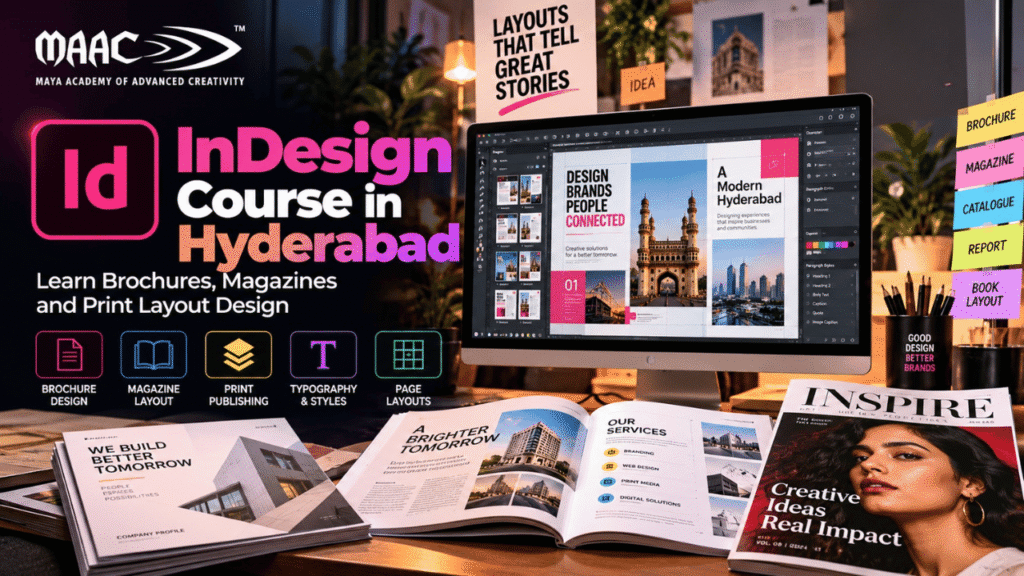
Adobe InDesign is a page-layout and publishing application developed for creating professional print and digital documents.
It is commonly used when a project contains multiple text and visual elements that need to be arranged consistently.
Examples include:
Brochures
Magazines
Books
Catalogues
Annual reports
Company profiles
Newsletters
Flyers
Posters
Portfolios
Training manuals
Event programmes
Product guides
The strength of InDesign is its ability to manage complex layouts.
For example, instead of manually formatting every heading in a 50-page document, designers can create paragraph styles and apply them consistently throughout the document.
This saves time and helps maintain visual consistency.
Print and publishing continue to require structured layout design even as digital content grows.
Businesses and organizations still create:
Product catalogues
Company profiles
Reports
Brochures
Event materials
Training documents
Magazines
Books
Marketing collateral
At the same time, InDesign can also support digital publishing workflows.
For students interested in graphic design, learning InDesign can therefore add an important skill alongside software such as Photoshop and Illustrator.
Photoshop is particularly useful for image editing.
Illustrator is commonly used for vector graphics and illustrations.
InDesign is particularly useful for combining text, images, graphics, and multiple pages into a structured publication.
Understanding how these tools work together can help students develop a broader professional design workflow.
An InDesign course in Hyderabad can be useful for students and professionals from different backgrounds.
It may be suitable for:
Students after 12th
College students
Graduates
Graphic design beginners
Publishing aspirants
Print designers
Freelancers
Marketing professionals
Content creators
Advertising professionals
Corporate communication teams
UI and visual-design learners
Previous experience is not always required.
Beginners can start by learning simple page layouts before progressing to multi-page publications.
A practical InDesign course can cover several areas.
Depending on the curriculum, students may learn:
InDesign interface
Document setup
Page sizes
Margins
Columns
Bleed
Grids
Guides
Text frames
Image frames
Typography
Paragraph styles
Character styles
Master pages
Page numbering
Tables
Image placement
Object styles
Links
Preflight
Packaging
PDF export
Print preparation
Portfolio development
The goal should be to move beyond individual tools and create complete publications.
The first step is becoming familiar with the workspace.
Students can learn about:
Tools panel
Properties
Pages panel
Layers
Links
Swatches
Paragraph controls
Character controls
Align tools
Effects
Preflight
Understanding the workspace helps designers work efficiently.
Because InDesign is focused heavily on page layout, students should also become comfortable with managing multiple pages and organizing content.
Before beginning a layout, the document needs to be configured correctly.
Students can learn about:
Page size
Orientation
Margins
Columns
Bleed
Slug
Facing pages
For example, an A4 brochure may require a different setup from a magazine or business card.
Correct document setup can reduce problems later during printing.
InDesign allows designers to create multi-page documents.
Facing pages are particularly useful for:
Magazines
Books
Catalogues
Brochures
Instead of viewing every page independently, designers can work with left and right pages as a spread.
This makes it easier to understand how the publication will look when opened.
Margins create a safe area around the page content.
Columns help organize text and other elements.
For example, a magazine article might use:
Two-column layout
Three-column layout
Full-width headline
Image spanning multiple columns
Students can experiment with different grid structures to understand how layouts can be organized.
Grid systems are important in professional layout design.
A grid helps designers maintain:
Alignment
Spacing
Consistency
Visual rhythm
Guides can be used to align:
Text
Images
Headlines
Captions
Page numbers
Graphics
A well-structured grid can make a complex page feel organized.
Typography is one of the most important parts of page-layout design.
Students can learn:
Font selection
Font size
Font weight
Leading
Tracking
Kerning
Alignment
Paragraph spacing
Text hierarchy
InDesign provides detailed controls for managing large amounts of text.
This is particularly useful for magazines, reports, books, and brochures.
Paragraph Styles are one of the most valuable InDesign features.
Instead of manually formatting every heading, designers can create a style.
For example:
Heading 1
Font
Size
Weight
Colour
Spacing
Body Text
Font
Size
Leading
Alignment
If the design needs to change later, the style can be updated and the changes can be applied consistently.
This becomes extremely useful in large documents.
Character Styles allow designers to apply formatting to specific words or characters.
They can be useful for:
Highlighted text
Emphasis
Captions
Special labels
References
Character styles can work alongside paragraph styles to create a consistent typography system.
Multi-page documents often contain repeating elements.
For example:
Page numbers
Header
Footer
Logo
Background element
Section title
Instead of placing these elements manually on every page, designers can use parent-page functionality.
This can significantly reduce repetitive work.
Page numbering is essential for magazines, books, reports, catalogues, and manuals.
InDesign allows designers to create automatic page numbering systems.
This becomes especially useful when pages are added or removed.
Instead of manually updating every page number, the document can manage numbering systematically.
Images are an important part of brochures and magazines.
Students can learn how to:
Place images
Resize images
Crop images
Fit images into frames
Align images
Wrap text around images
InDesign uses image frames to control how photographs and graphics appear within a layout.
Professional documents often contain many external images.
InDesign manages these through linked files.
Students should understand:
Links panel
Missing links
Updating images
Relinking files
Image resolution
File organization
Good file management becomes increasingly important as projects become larger.
Text wrapping allows text to flow around images or objects.
For example, a magazine article may have a photograph positioned beside the article text.
The text can be configured to flow around the image instead of running underneath it.
This can create more dynamic and editorial-style layouts.
Brochure design is one of the most practical applications of InDesign.
Brochures can be created for:
Educational institutions
Businesses
Hotels
Real estate
Events
Healthcare
Tourism
Product companies
A brochure may include:
Cover
Introduction
Services
Features
Benefits
Images
Testimonials
Contact information
Call to action
Students can learn how to structure this information across multiple panels or pages.
Brochure design is one of the most practical applications of InDesign.
Brochures can be created for:
Educational institutions
Businesses
Hotels
Real estate
Events
Healthcare
Tourism
Product companies
A brochure may include:
Cover
Introduction
Services
Features
Benefits
Images
Testimonials
Contact information
Call to action
Students can learn how to structure this information across multiple panels or pages.
A brochure should have a clear information hierarchy.
A possible structure is:
Cover → Introduction → Services → Benefits → Supporting Information → CTA
The design should guide the reader naturally from one section to the next.
Important considerations include:
Typography
Images
Brand colours
Spacing
Alignment
Fold structure
Print specifications
Magazine design is another major use of InDesign.
A magazine can include:
Cover
Contents page
Articles
Interviews
Advertisements
Photography
Captions
Pull quotes
Sidebars
InDesign provides tools that make it easier to manage these different elements across multiple pages.
Students can create a fictional magazine as a portfolio project.
The cover is often the first visual interaction with a magazine.
It may include:
Magazine title
Main image
Feature headline
Supporting headlines
Issue information
The cover needs strong visual hierarchy.
The viewer should quickly understand:
What is this publication?
What is the main feature?
Why should I read it?
Editorial design focuses on organizing written content and images into readable pages.
Students can practice:
Headlines
Subheadings
Body text
Pull quotes
Captions
Images
Sidebars
The objective is to make long-form content visually engaging and easy to read.
InDesign is commonly used for long-form publications.
Students can explore layouts for:
Books
E-books
Training manuals
Guides
Educational materials
Long documents require careful management of:
Chapters
Page numbering
Headers
Footers
Paragraph styles
Table of contents
Cross-references
Catalogues require the presentation of many products or services.
A catalogue may contain:
Product images
Product names
Descriptions
Specifications
Prices
Categories
The layout should remain consistent across multiple pages.
InDesign can help designers create reusable layouts and styles.
Businesses and organizations often publish annual reports.
These documents may contain:
Company information
Financial information
Charts
Tables
Photographs
Management messages
Data visualizations
An annual report requires strong information hierarchy and careful page organization.
InDesign can be used to combine these different elements into a professional publication.
Newsletters can be designed for:
Companies
Schools
Colleges
Associations
Communities
Organizations
They may include:
News
Announcements
Articles
Events
Images
Contact information
Students can practice creating a multi-page newsletter to understand editorial hierarchy.
A company profile introduces an organization to customers, partners, or investors.
It may include:
Company introduction
Mission
Vision
Services
Team
Projects
Achievements
Contact details
InDesign can help maintain consistent branding throughout the document.
Although simple posters can be created using other design applications, InDesign can also be useful for structured print layouts.
Students can design:
Event flyers
Workshop posters
Promotional materials
Educational notices
Business announcements
The focus should be on:
Clear headline
Supporting information
Visual hierarchy
CTA
Contact information
Tables are useful for structured information.
They can be used for:
Pricing
Product specifications
Course schedules
Comparisons
Reports
Data
Students can learn how to format tables using:
Rows
Columns
Cell styles
Borders
Shading
Typography
Long documents often require a table of contents.
InDesign can generate a table of contents based on paragraph styles.
This is particularly useful for:
Books
Manuals
Reports
Training materials
Catalogues
Students can learn how styles and document structure work together.
Before exporting a document for print, designers need to check for potential problems.
Preflight can help identify issues such as:
Missing fonts
Missing links
Overset text
Incorrect colour settings
Other document problems
Learning preflight can help students develop better professional workflows.
Preparing the final PDF is an important part of print design.
Students can learn about:
PDF export
Bleed
Crop marks
Page size
Image quality
Colour settings
Font handling
The exact export settings depend on the printing workflow and requirements.
Designers should always confirm specifications with the print provider when necessary.
Print workflows commonly involve colour-management considerations such as CMYK.
Students can learn why colour settings matter and how screen-based colours can differ from printed results.
Understanding print colour is important when designing:
Brochures
Flyers
Magazines
Packaging
Business cards
Catalogues
InDesign is often part of a larger Adobe workflow.
For example:
Photoshop → Edit Photograph
Illustrator → Create Logo or Vector Graphic
InDesign → Build Final Publication
This combination allows designers to use the strengths of different applications.
A magazine may use photographs edited in Photoshop, illustrations created in Illustrator, and then combine everything inside InDesign.
Photoshop and InDesign serve different purposes.
Best suited to:
Photo editing
Retouching
Image manipulation
Raster graphics
Digital artwork
Best suited to:
Multi-page layouts
Brochures
Magazines
Books
Reports
Catalogues
A designer working professionally may use both applications.
Illustrator is primarily focused on vector graphics.
It is commonly used for:
Logos
Icons
Illustrations
Vector artwork
Typography-based graphics
InDesign focuses more on page layout.
It is commonly used for:
Brochures
Magazines
Books
Reports
Catalogues
Together, Illustrator and InDesign can support a complete print-design workflow.
A practical InDesign course can help students develop several categories of skills.
Document setup
Page layout
Grids
Typography
Styles
Parent pages
Tables
Image placement
PDF export
Composition
Visual hierarchy
Typography
Spacing
Alignment
Editorial design
Print design
File organization
Preflight
Print preparation
Client revisions
Design presentation
Portfolio development
Project-based learning can help students understand how InDesign is used in real-world design.
Create a six- or eight-page brochure for a fictional company.
Include:
Cover
Company introduction
Services
Benefits
Testimonials
Contact page
Create a fictional magazine with:
Cover
Contents
Feature article
Interview
Advertisement
Photography pages
This project can demonstrate editorial layout skills.
Create a catalogue containing multiple products.
Include:
Product images
Names
Descriptions
Specifications
Pricing
Create a professional company profile containing:
About
Mission
Services
Team
Projects
Contact
Create a simplified annual report with:
Introduction
Statistics
Charts
Tables
Highlights
Conclusion
Design a multi-page newsletter for a fictional organization.
Include:
News
Events
Articles
Images
Announcements
Create a short multi-chapter publication.
Demonstrate:
Page numbering
Chapter headings
Body text
Headers
Footers
Table of contents
A portfolio can demonstrate your ability to handle real publication layouts.
Instead of showing isolated exercises, include complete publications.
A strong portfolio can include:
Brochure
Magazine
Catalogue
Company profile
Newsletter
Annual report
Book layout
For every project, explain:
Brief → Research → Layout Concept → Design System → Final Pages
Showing different page types can help demonstrate your ability to maintain consistency across a complete document.
A strong portfolio should demonstrate:
Typography
Layout
Grid systems
Consistency
Image handling
Visual hierarchy
Print awareness
Avoid showing only attractive individual pages.
Show how the entire document works together.
For example, a magazine project should include:
Cover
Contents
Feature spread
Article page
Advertisement
Closing page
This gives employers or clients a better understanding of your layout skills.
InDesign skills can support several creative career paths.
Creates visual materials for print and digital communication.
Focuses on brochures, flyers, catalogues, posters, and other printed materials.
Works on magazines, books, newsletters, and editorial publications.
Focuses on typography, articles, magazines, and publishing layouts.
Specializes in arranging text and visual content within structured layouts.
Works with desktop publishing and print-production workflows.
Creates brochures, company profiles, promotional documents, and campaign materials.
Provides print and layout services to businesses and organizations.
Freelance designers can offer services such as:
Brochure design
Magazine layout
Catalogue design
Company profiles
Annual reports
Book layout
Newsletter design
Training manuals
Event programmes
Corporate documents
Freelancers also need to understand:
Client requirements
Content organization
Revisions
File packaging
Print specifications
Deadlines
Pricing
A strong portfolio can help demonstrate professional capability.
Students who have completed 12th can explore InDesign as part of a broader graphic-design, publishing, or visual-communication program, depending on the eligibility requirements of the course they choose.
A possible learning path is:
Design Fundamentals → Typography → InDesign Basics → Page Layout → Brochures → Magazines → Print Preparation → Portfolio
Students can then expand their skills into:
Photoshop
Illustrator
Branding
UI/UX
Digital marketing
Motion graphics
This combination can create a broader design skill set.
When comparing an InDesign course in Hyderabad, students should look at the practical curriculum rather than only the course name.
Look for training in:
Page layout
Typography
Grids
Styles
Parent pages
Brochures
Magazines
Catalogues
Print preparation
PDF export
Ask whether students create complete publications.
Industry-oriented guidance can help students understand professional workflows.
A course should ideally help learners create work that can be presented to employers or clients.
Understanding bleed, margins, colour, resolution, and PDF preparation is important for print work.
Depending on the institute, support may include:
Resume guidance
Portfolio review
Interview preparation
Project feedback
A layout without structure can appear inconsistent.
A controlled typography system usually produces better results.
Crowded content can make a page difficult to read.
Using styles is more efficient for large documents.
Print documents may require bleed depending on the production process.
Low-quality images can affect the final printed result.
Each page does not need to look identical, but the publication should maintain a consistent visual language.
Hidden or overflowing text can cause missing content in the final output.
A beginner can follow this structured progression.
Learn:
Typography
Colour
Composition
Alignment
Visual hierarchy
Learn:
Documents
Pages
Frames
Guides
Layers
Practice:
Paragraph styles
Character styles
Text formatting
Text hierarchy
Create:
Flyers
Posters
Simple brochures
Create:
Magazines
Catalogues
Company profiles
Learn:
Parent pages
Table of contents
Tables
Long documents
Practice:
Preflight
Packaging
PDF export
Bleed
Print specifications
Create several complete publications.
Prepare:
Resume
Portfolio
Interview projects
Freelance profile
An InDesign course teaches students how to create professional page layouts for brochures, magazines, books, catalogues, reports, newsletters, and other multi-page publications.
Beginners can learn the basic tools relatively quickly. Advanced page-layout workflows require practice, especially when working with long documents.
Yes. Students who have completed 12th can explore InDesign as part of a graphic-design, publishing, or creative-media program depending on the eligibility requirements of the selected course.
InDesign is primarily used for page layout and publishing. It is especially useful for brochures, magazines, books, catalogues, reports, newsletters, and other multi-page documents.
For multi-page brochures, InDesign is generally better suited because it provides tools specifically designed for page layout, typography, pages, styles, and print preparation.
Yes. InDesign is well suited for magazine layouts containing multiple pages, articles, images, advertisements, captions, and page numbers.
Yes. InDesign is an important skill for designers working with publishing, print, editorial layouts, corporate documents, and marketing collateral.
Yes. Designers often use Photoshop for image editing and Illustrator for vector graphics, then combine those assets in InDesign.
Yes. Freelancers can provide brochure, catalogue, magazine, book, company profile, newsletter, annual report, and other layout-design services.
Yes. A portfolio should demonstrate complete publications and show your ability to maintain typography, layout, spacing, and visual consistency across multiple pages.